Find, Review and Edit Events
Keep your event calendar accurate: find any event, decide what goes public, fix details and add events yourself.
In the sidebar, under My Directory, click Events.
The page shows the events on one list, your default events list until you pick another. If your organization has no events list yet, the page asks you to build one: click Start the wizard.
View Calendar, at the top right, opens your public calendar in a new tab. The arrow beside it links to your calendars and builds a new calendar from the list on screen. Configure Embed & Default View, in the same menu, gives you embed code for the list's calendar, featured carousel or event submission form.
Find an event
-
Choose the list in the list menu at the left of the toolbar. The menu, Show events from, lists Your lists. Where your organization has an area, it also offers every event inside it, such as Entire boundary. New events list starts a list; Manage lists → opens your lists.
-
Pick a tab: Approved, Pending, All, Disapproved or Submissions. Each tab shows its count. The page first opens on Approved, then remembers your choice.
-
Type a name in Search events by name….
-
Narrow by date with the date menu beside the list menu. It reads All Dates until you pick a range, and shows upcoming events only.
- Under Upcoming: All upcoming dates, Today, This Weekend, Next 7 Days or This Month.
- Under Past Events: Past Month, Past 6 Months or Past Year.
- Tick Include all past events to add every past event.
- Under Recurring events, choose One row per series or Every date.
-
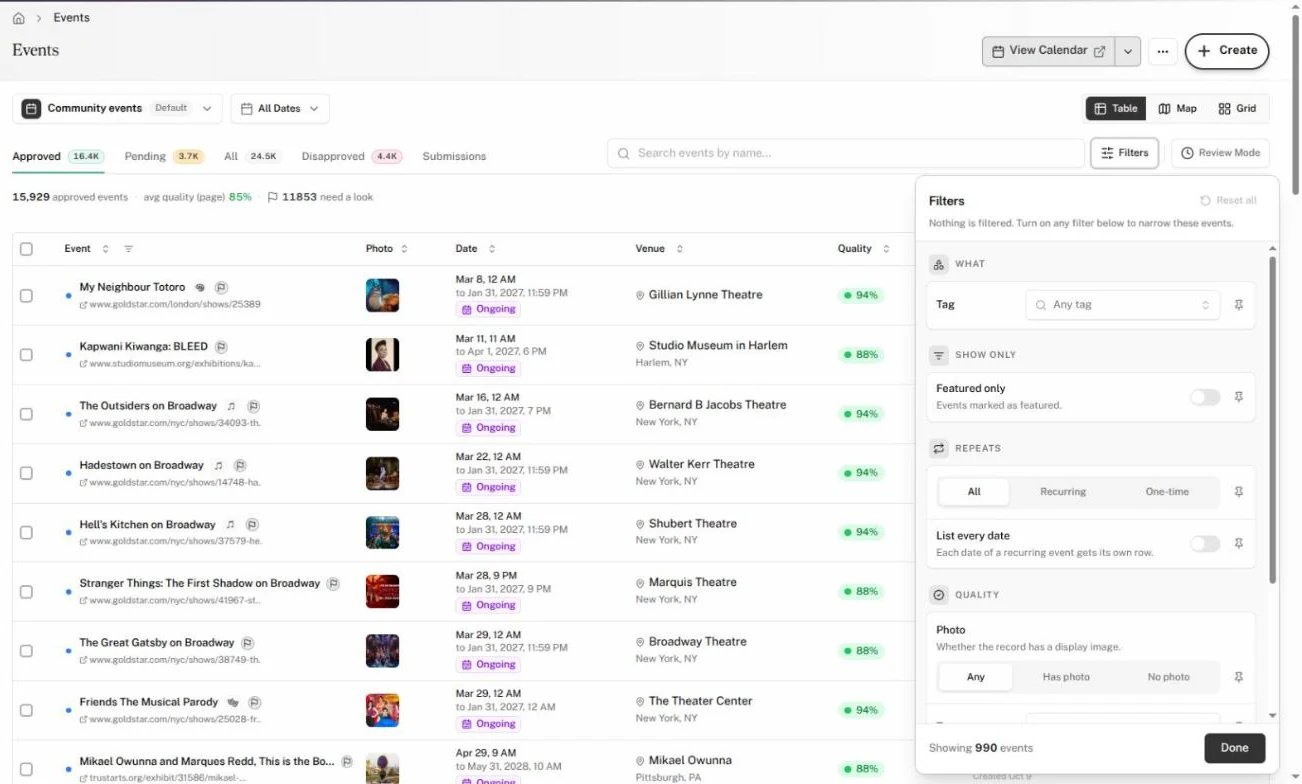
For more, click Filters:
Section Filters What Tag Show only Featured only Repeats All, Recurring or One-time, and List every date Quality Photo (Any, Has photo or No photo) and Tags (With tags or Missing tags) Source All, Submitted or Found by Vibemap The footer counts the events that match. Reset all clears every filter; Done closes the panel. To keep a filter on the toolbar, click the pin beside it.
-
Switch between Table, Map and Grid at the top right.
The line under the tabs counts the events that match, and their dates when a series repeats. It also shows avg quality (page), the average completeness of the events on the page, and how many events need a look. Click need a look to review every flagged event, whatever its tab. Each filter in force shows as a chip; Clear all removes them.
In the table, hover an event's name for a preview card. A blue dot marks an event you haven't opened. To show, hide or reorder columns, click the columns button at the right end of the header row.
Review pending events
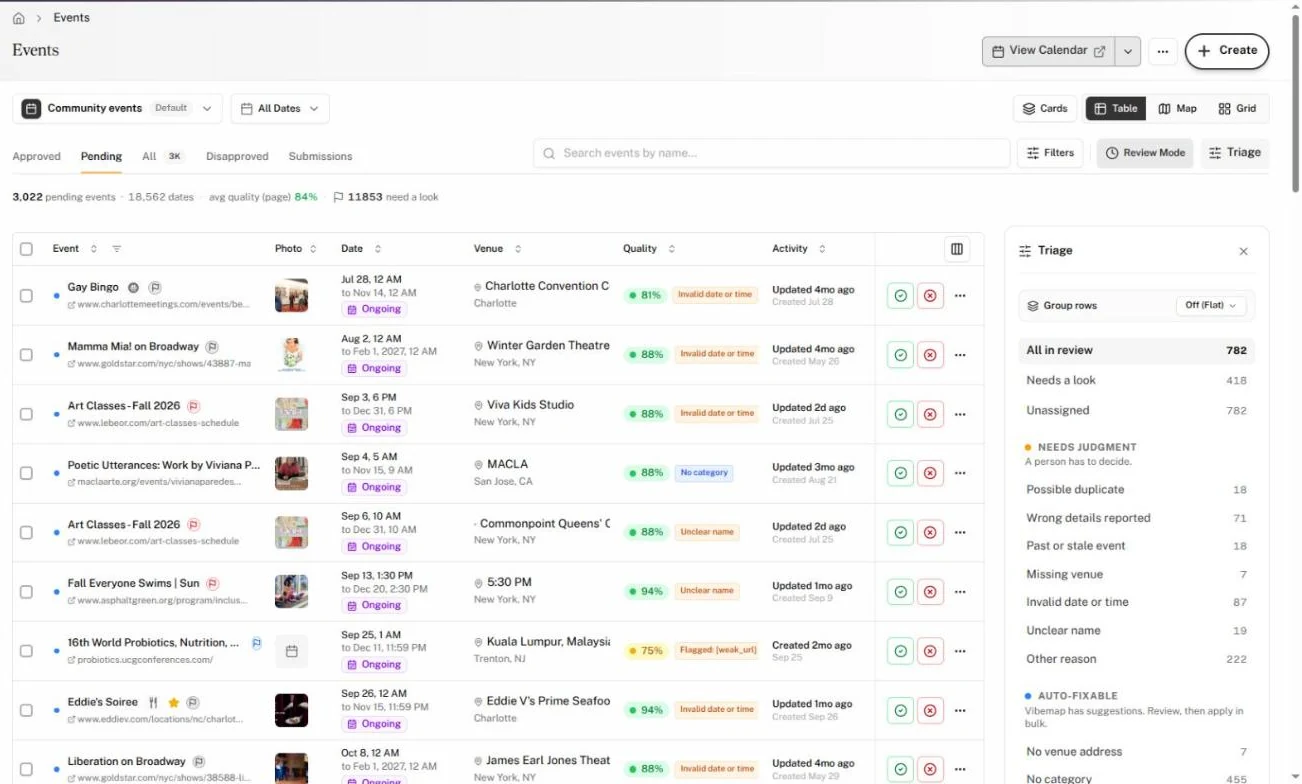
- Click the Pending tab. Review Mode turns on, and the Triage sidebar opens.
- In Triage, pick a bucket to work through. Needs Judgment holds events a person has to decide, such as Possible duplicate, Past or stale event, Missing venue and Invalid date or time. Auto-Fixable holds events missing a venue address, category, photo or description. Ready holds Ready to approve. Reset returns to every pending event.
- Approve or disapprove with the check and cross buttons on each row, or from the row's Row actions menu (Approve Event, Disapprove Event).
Rows you decide stay in place, dimmed, with a chip such as "Disapproved · Undo". Click Undo on the chip to reverse the decision. Approved events appear on your public calendars and embeds. Disapproved events stay hidden.
To sort the table into sections, choose a grouping under Group rows in the sidebar: Triage Bucket, Review Activity, Data Sources or Enrichment. Grouped by Triage Bucket, the Ready to Approve section offers Approve all ready.
Review Mode works on the other tabs too: click it in the toolbar for the row buttons and the sidebar. Triage shows or hides the sidebar.
On Pending, Cards shows each pending event as a card with approve and disapprove buttons, sorted by what it needs. Classic Table returns to the table.
The Submissions tab lists events that visitors and partners submitted. Above the table, choose Pending, All submissions or Outside your area.
For the cross-page queue of pending work, see Review Pending Items in the Inbox.
Edit an event
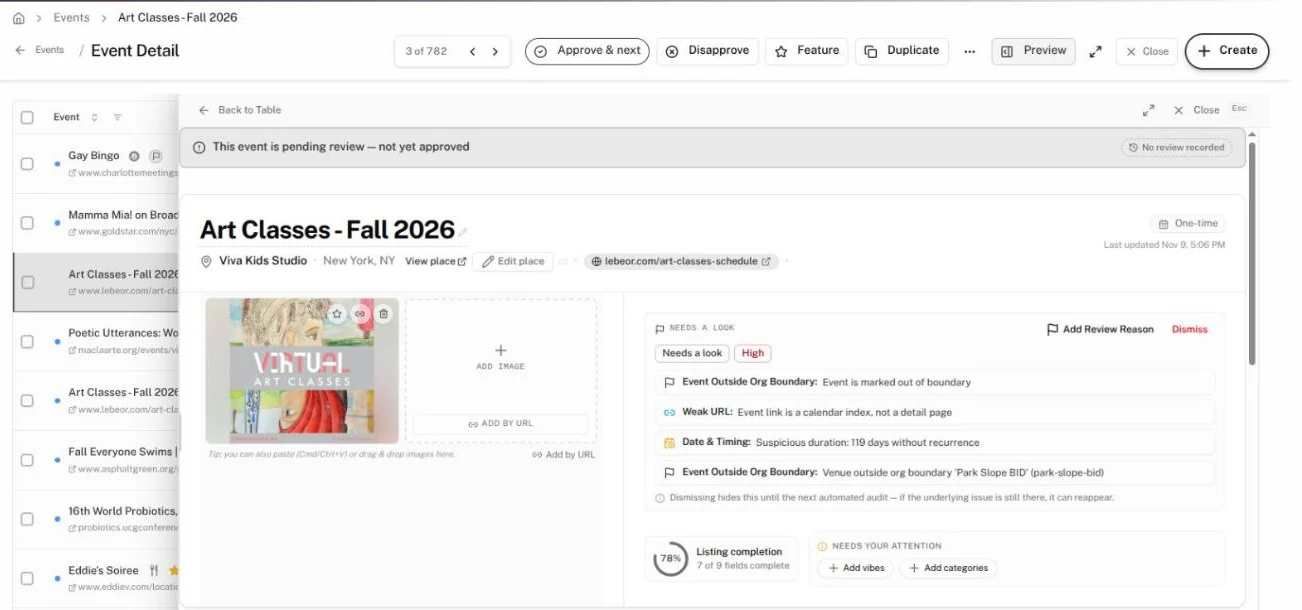
- Click an event. Its detail opens over the table.
- Click a field with a dashed underline, such as the description, to edit it.
- Press Enter or click away to save. In a long text field, such as the description, press Cmd+Enter. Press Esc to cancel.
Each change saves at once, and a toast offers Undo.
The detail header also carries:
- Approve & next or Disapprove: decide on this event and move to the next one. A recurring event changes for all its dates. Once an event is decided, the arrow beside the button offers Set to Pending.
- Feature or Unfeature: mark the event as featured.
- Duplicate: copy the event's venue, descriptions, categories and photos into a new event. Give it a New Event Title and a Start Date & Time, tick or clear Approve Immediately, and click Duplicate Event. Edit all fields in full form opens the full event form instead.
- The More actions menu: Refresh, Duplicate Event… and View on Vibemap.com.
- Preview: show the event's public page beside the detail.
Keyboard shortcuts work while the detail is open: the arrow keys move to the previous or next event, A approves, U disapproves, F features and D duplicates.
Click Close, or press Esc, to return to the table.
To move an event to another venue, choose Switch Venue from the row's Row actions menu, then search for the place and pick it.
A one-time event that lasts less than a day can drop its end time: click Ends, then Clear. The field reads No end time.
Under Secondary Links, click the pencil beside a link to change its address or label, then click Save. The remove button beside it drops the link, and the toast offers Undo.
Add an event
- Click Create, then Event. The Add an Event page opens.
- Fill in Event Name, Venue or Address and Start. These are required; the address must match a real place.
- Add whatever else you have: website, description, end time, price, categories, tags and organizer.
- Under Approval status, choose Approved, Pending review or Declined. Under Featured status, choose Standard or Featured.
- Beside Submit Event, Add to list starts on your default events list. Pick another list, or Don't add to a list.
- Click Submit Event.
The Hub confirms the event was added and opens it.
Act on several events at once
-
Tick the checkboxes beside the events. A bar appears above the table: "3 events selected".
-
Click an action on the bar: Approve, Disapprove, Pending, Feature or Flag. On a narrow screen the bar shows icons only. Click More for every action:
- Status: Approve, Disapprove, Set to Pending, Feature, Unfeature, Flag for a look, Clear flag, Mark canceled and Clear canceled
- Tags & categories: Add tags…, Remove tags…, Add vibes… and Remove categories…
- Lists: Create new list, which starts a curated list of the selected events
- Tools: Merge…, with two or more events selected
To put an action on the bar, click the pin beside it under More.
-
Confirm. The toast offers Undo for 10 seconds.
Merge… opens Merge Events. Pick the Primary event to keep; the others merge into it. Tick Make the merged group a recurring event to keep their dates as one series, then click Merge Events.
Click Clear, or press Esc, to drop the selection.
Show event categories
Events category chips is off by default. Ask your Vibemap contact to turn it on.
With it on, a Top categories line above the table counts the most common categories among the events on the page. A Categories column shows each event's categories as chips; turn it on from the columns button at the right end of the header row. A category your organization renamed shows its new name with an asterisk; hover it to see the original.