Design Your Theme
The Themes page is off by default. Ask your Vibemap contact to turn it on for your organization.
Set the look every map, grid and calendar inherits. Change it once and every embed follows.
A theme holds your colors and logo, what cards show, the map style and boundary, which filters visitors get, the Add Event form, and the tools visitors can use on place pages. Your organization's default theme applies everywhere until something picks another:
- A list can wear its own theme: pick it under Theme in the list wizard's details step or on the list's Rules tab. See Lists.
- A map or calendar can pick any of your themes in the builder's Theme & Brand section. See Maps and Calendars.
In the sidebar, under My District, click Themes.
The Themes page
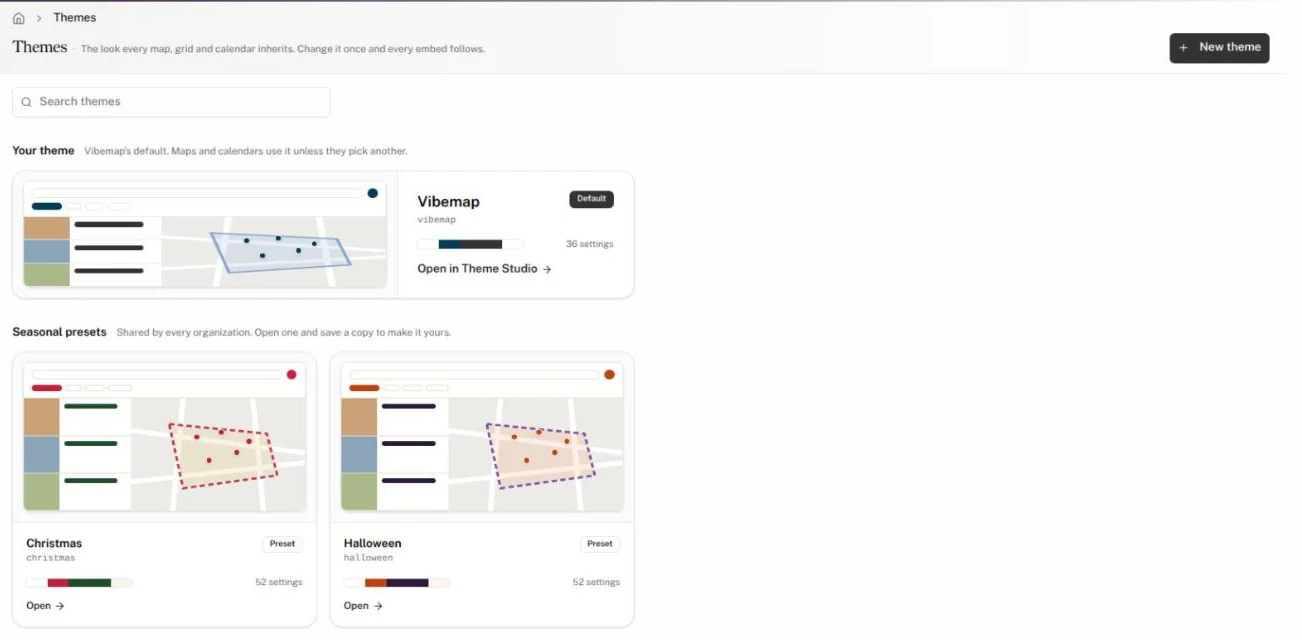
Themes are grouped:
- Your theme: your organization's default, marked Default.
- Your organization's themes: every other theme your organization owns. Only your organization sees them.
- Used by your lists: themes another organization owns that one of your lists wears, marked View only.
- Seasonal presets: themes every organization shares, marked Preset.
Each card shows a sketch of the theme, its slug, a color bar and how many settings it sets. Type in Search themes to filter by name or slug.
Create a theme
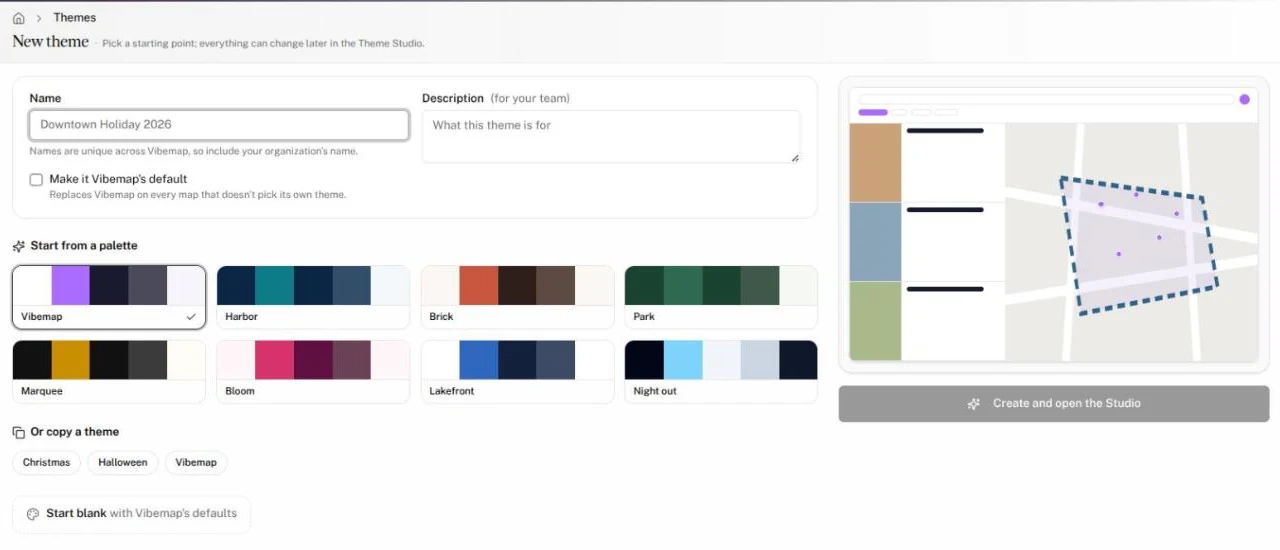
- Click New theme.
- Enter a Name. Names are unique across Vibemap, so include your organization's name.
- Optionally add a Description for your team.
- Check Make it your organization's default to replace your current default on every map that doesn't pick its own theme. It starts checked when your organization has no theme yet.
- Pick a starting point:
- a palette under Start from a palette: Vibemap, Harbor, Brick, Park, Marquee, Bloom, Lakefront or Night out;
- an existing theme under Or copy a theme;
- or Start blank with Vibemap's defaults.
- Click Create and open the Studio.
The new theme belongs to your organization, so your team can edit it.
Edit a theme in the Theme Studio
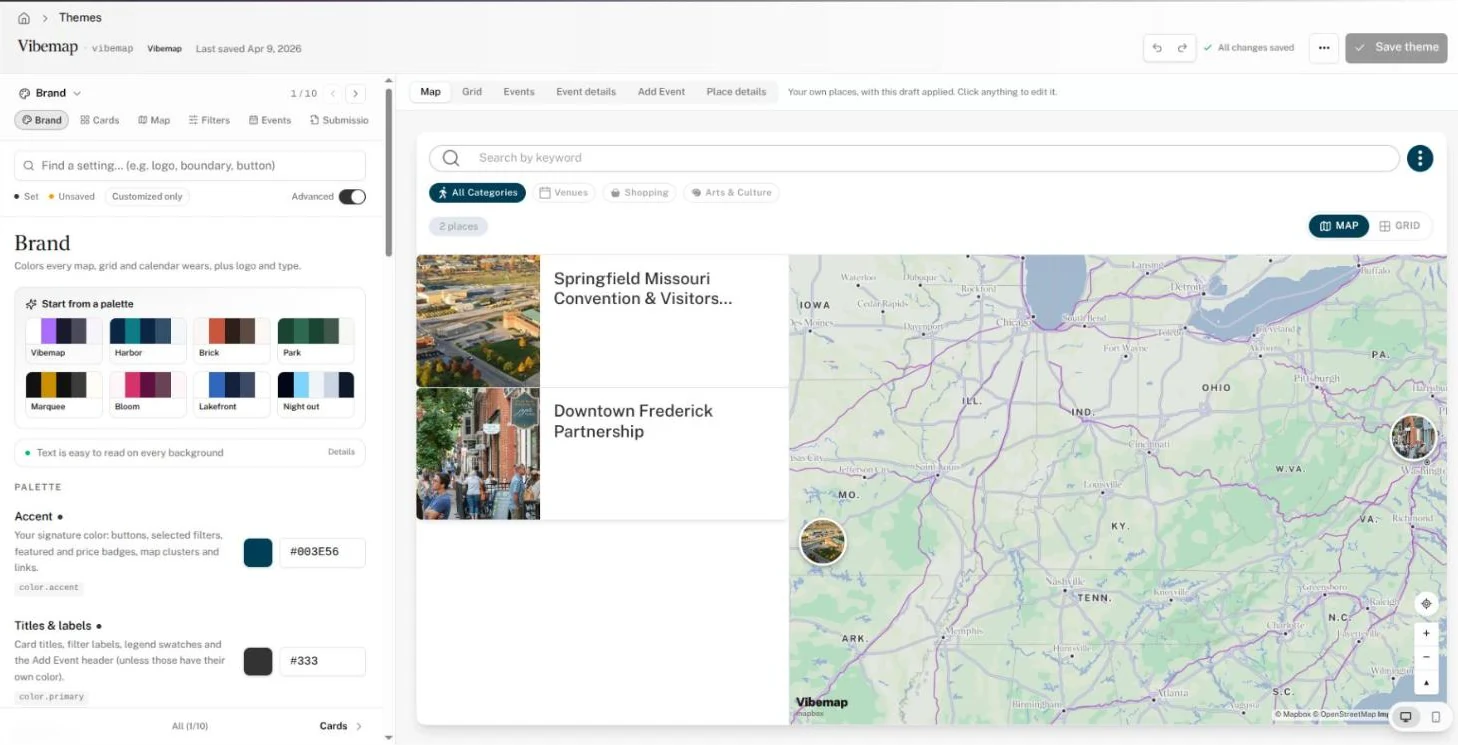
Click a theme's card. The Theme Studio opens with settings on the left and a live preview on the right.
- Pick a section from the section menu or the chips under it, or step through them with the arrows (or the ← and → keys).
- Change a setting. The dots beside each label follow the legend: Set marks a setting this theme sets, Unsaved a change you haven't saved. Default puts a setting back to Vibemap's default.
- Watch the preview. Switch it between Map, Grid, Events, Event details, Add Event and Place details, and between Desktop and Mobile. It shows your own places and events, or samples, with the draft applied. Click anything in the preview to jump to its setting.
- Click Save theme, or press ⌘S (Ctrl+S on Windows). The changes go live on every map and calendar that uses the theme.
To find one setting, type in Find a setting… (for example "logo", "boundary" or "button"); results span every section. More options opens the rest of a section. Turn on Advanced to show every option at once, plus the theme key each one saves to.
Use the undo and redo buttons (⌘Z, ⌘⇧Z) to step through edits. The unsaved changes count above the preview lists each change and its old and new value; Discard drops them all.
What each section sets
| Section | What it sets |
|---|---|
| Brand | Palette colors (Accent, Titles & labels, Body text, Top bar, Page background, Cards & panels), number bubbles on the map, Logo, the Organization name that signs emails, and fonts |
| Cards | Vibe, tag and category chips, description, event time, address, subtitle lines, name color, photo cropping, hiding items without a photo, and Open your own page for card clicks |
| Map | Map style, the boundary line and fill, markers and pin grouping, items outside the boundary, transit lines, the card sheet on phones, and where the map opens |
| Filters | Which categories, vibes and tags the filters offer or never offer, and what they're called |
| Events | The event link button, a notice on every event, where Back goes on single pages, and featured-only carousels |
| Submissions | The Add Event button address, the form's intro and header, required fields, the tags to pick from, and whether submissions wait for review |
| Layout | Grid columns, cards before Load more, the list beside the map and the sign-in button |
| Visitor tools | Whether visitors can suggest an edit, claim a business, or open the full editor |
| Details | Name, description, amenity display on place pages, and where the theme is used |
Some settings carry a chip, such as Place pages or WordPress only: hover it to see where the setting takes effect. An Inherited chip means the setting follows another until you set it.
On Brand, click a palette tile to apply its colors. The readability check flags text that is hard to read on its background; click Fix to adjust the color.
On Filters, settings apply to places and events alike. Turn on Separate for events to give event filter bars their own lists.
Some sections link to the related Hub page: Filters to the Taxonomy builder, Submissions to the Inbox, Visitor tools to Suggested edits, and Map to the Map builder, where a single map can still override the theme.
Details lists Where it's used: whether the theme is your organization's default, and which of your lists wear it.
Themes you can't edit
Seasonal presets and themes another organization owns open View only. Explore and edit them freely, then click Save as a copy (or Make a copy before you change anything). The copy belongs to your organization and only your organization sees it; the original doesn't change.
More theme actions
The ⋯ menu beside Save theme offers:
- Copy slug and Copy ID
- Download as JSON
- Duplicate, a copy of a theme your organization owns
- Make your organization's default, for one of your themes that isn't the default yet
Gotchas
- A theme can't share a name with any other theme on Vibemap. Saving a taken name fails with "That name is taken".
- Event cards and event maps still use the Places settings in Cards and Map. After a save, the confirmation says which changes are saved for later because embeds don't read them yet.
- Leaving the Studio with unsaved changes asks you first.