Manage Your Places
Keep your directory accurate: find any place, review new ones, fix their details and add what's missing.
Places holds every business, venue and landmark in your directory. In the sidebar, click Places under My Directory. Suggested Edits sits under Tools.
Find a place
-
In the sidebar, click Places.
-
Choose which places you see:
- The list picker at the top left opens Show places from. Pick one of Your lists, or your whole area. The star beside a list makes it your default (Set as default). New places list creates one; Manage lists → opens all your lists.
- The switch beside it jumps between Directory, your default places list, and Entire boundary, every place in your area. A radius organization sees Within 5 mi or similar instead. Each side shows its count.
-
Pick a tab: Approved, Pending, All, Disapproved or Closed. A tab with places shows its count. The page opens on Approved, then keeps your last tab until you close the browser tab.
-
Type in the search box ("Search places by name…").
-
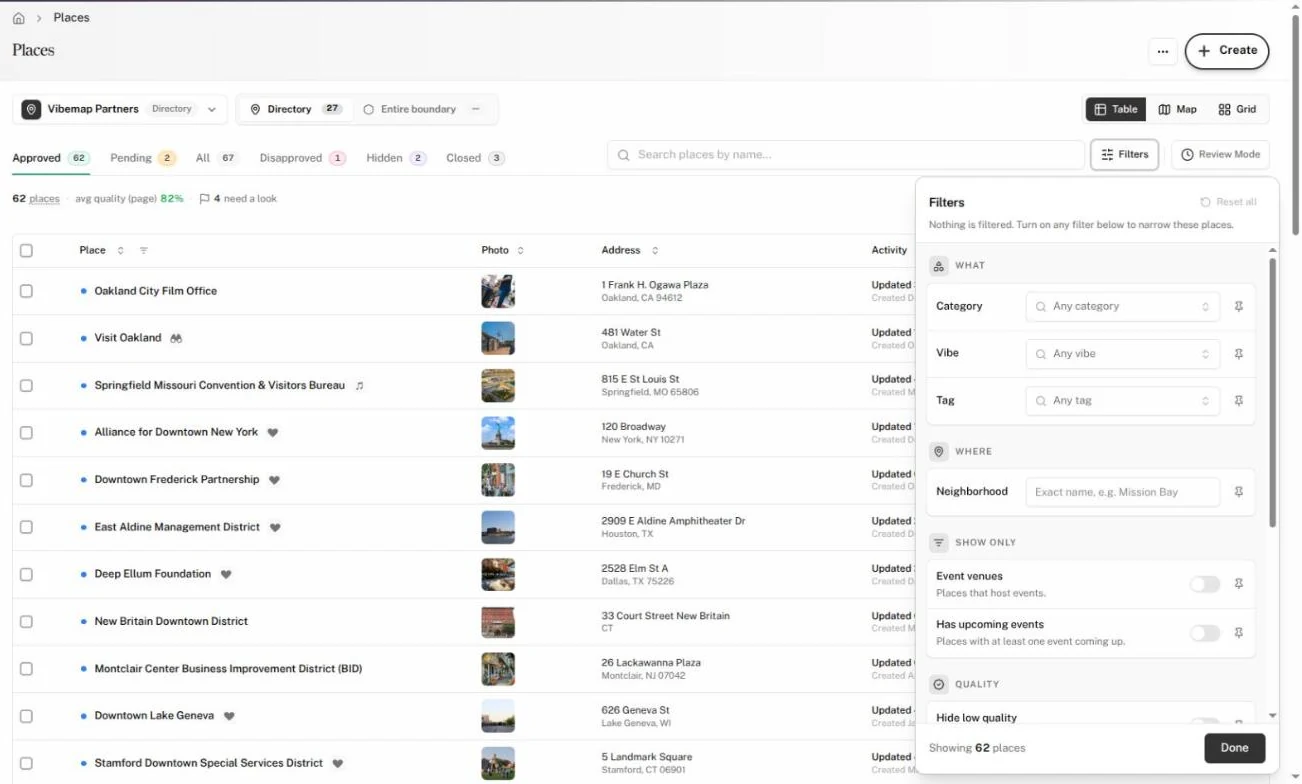
To narrow further, click Filters:
- What: Category, Vibe and Tag.
- Where: Neighborhood, typed exactly as it appears, such as "Mission Bay".
- Show only: Event venues (places that host events) and Has upcoming events.
- Quality: Photo (Any, Has photo, No photo) and Tags (Any, With tags, Missing tags, plus With preferred tags and Missing preferred tags when your organization has preferred tags).
- Source: All, Submitted or Found by Vibemap.
The footer reads "Showing N places". Click Done to close the panel, or Reset all to clear it. The pin beside a filter (Pin to the toolbar) puts that filter next to Filters so you can reach it without opening the panel.
-
Switch between Table, Map and Grid. Map and Grid add a sort menu. In Table view, the columns icon at the right end of the header row (Toggle columns) shows, hides and reorders columns; Reset columns restores the defaults.
Filters you set show as chips under the tabs; click a chip's X to drop it, or Clear all. Filters apply to the table, map and grid together.
The count under the tabs reads "1,240 places · 86 shown" when a filter narrows the list. Hover it to see how many places your public directory shows and why the rest stay off it.
Hidden joins the tabs when some open places stay off your public directory whatever their approval. All counts Approved, Pending, Disapproved and Hidden; closed places live only under Closed.
See categories at a glance
Places category chips is off by default; ask your Vibemap contact to turn it on.
With it on, the Categories column shows each place's categories as chips, parent categories first, up to three. +2 opens the rest. A category you renamed in Categories & Filters shows your name with an asterisk; hover it to see the original. Above the table, Top categories lists the six most common categories among the places on the page, with their counts.
If the Categories column is missing, turn it on with Toggle columns.
Review pending places in Review Mode
Review Mode is the fastest way through new places: approve or disapprove each one without leaving the list.
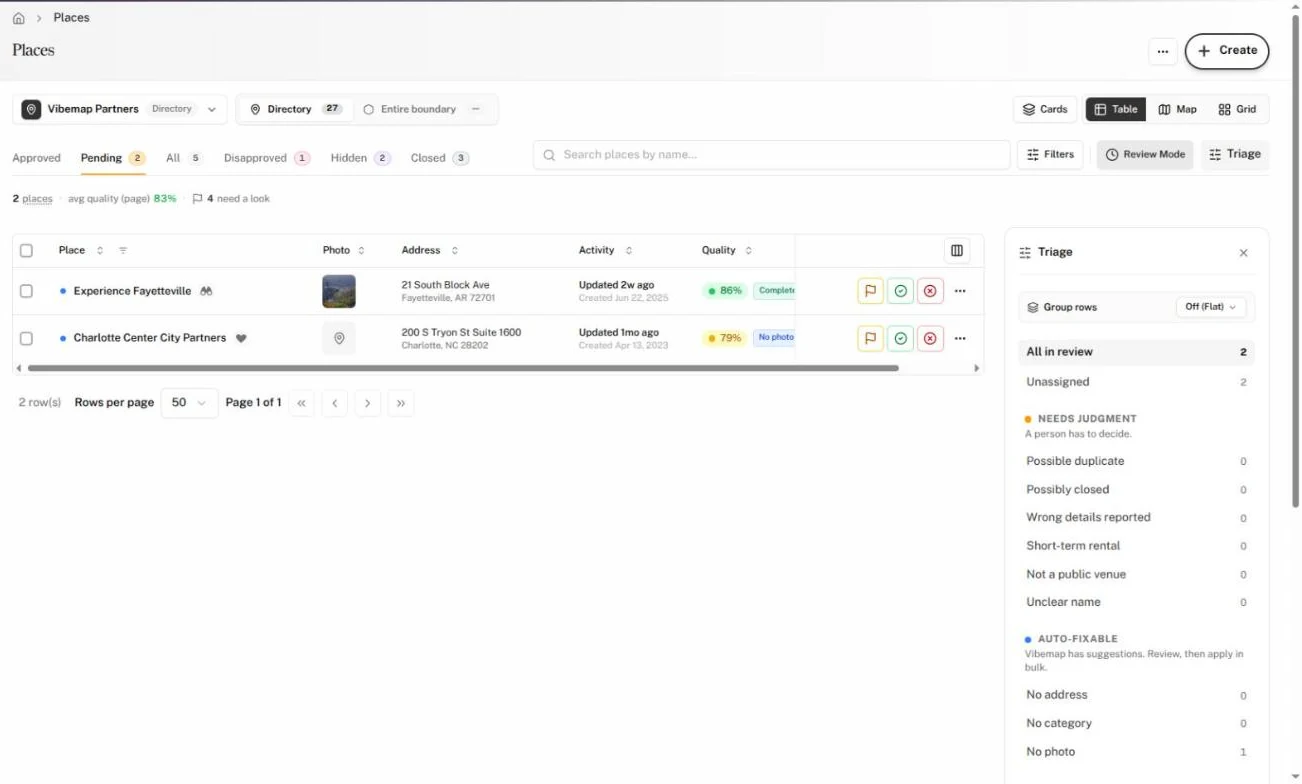
- Click the Pending tab. Review Mode turns on and the Triage panel opens on the right. You can also click Review Mode on any other tab to work through what it shows.
- On each row, use the buttons at the right: Flag for a look, Approve and Disapprove. A row offers only the decisions that change it, and a flagged row adds Clear flag.
- The row then shows what you did, with Undo.
To sort the queue, use the Triage panel. It counts pending places by what they need:
- Needs a look and Unassigned at the top.
- Needs Judgment, where a person has to decide: Possible duplicate, Possibly closed, Wrong details reported, Unclear name and more.
- Auto-Fixable, where Vibemap has suggestions: No address, No category, No photo, No description.
- Ready: Ready to approve.
- Review Activity and Data Sources & Pipeline, such as Never viewed or Multi-source (2+).
Click a bucket to list only those places. Under Group rows, choose Triage Bucket to split the table into Needs Judgment, Auto-Fixable and Ready to Approve; on the Pending tab, the last section offers Approve all ready (N) for the ready places on the page.
On the Pending tab, Cards shows each place as a card with Approve and Disapprove; Table switches back.
Click Review Mode again to turn it off. Click Triage to hide or show the panel.
The count of flagged places, such as "3 need a look", appears beside the place count. Click it to review every flagged place in Review Mode.
Edit a place
- Click a place's row. It opens in a panel over the list, with "3 of 120" and arrows to step between places.
- Click any field to change it: the name and address at the top, then the About, Contact, Taxonomy, Hours and Location sections. Press Enter or click away to save the field; press Esc to cancel. Each save offers Undo.
- Use the bar at the top to decide on the place:
- Approve & next (or press A) approves it and opens the next place.
- Disapprove (or U) hides it from your public directory and opens the next place.
- Feature (F) marks it as featured; Mark as Closed (C) records that it closed.
- Duplicate (D) starts a new place pre-filled with this one's details.
- Step through places with the arrows or the arrow keys, or click Close (or press Esc) to return to the list.
The More actions menu (⋯) in the panel offers Copy or move to list..., Remove from list (or Exclude from list on a Smart list), Refresh, View on Vibemap.com and Google search links.
A row's ⋯ menu, or a right-click on the row, offers the same moves from the list: View on Vibemap, Search on Google, Copy or move to list..., Remove from list and the decisions Approve, Disapprove and Set to Pending.
Act on many places at once
- Tick the checkbox on each place. A bar replaces the place count and shows how many you selected.
- Click a button on the bar: Approve, Disapprove, Pending, Feature or Flag. The bar shows only the actions that change a selected place, so Feature may read Unfeature. Click Add to list to copy or move the selection to one of your lists.
- For anything else, open More:
- Status: Mark closed, Mark open, Unfeature, Clear flag and the rest.
- Tags & categories: Add tags…, Remove tags… and Remove categories….
- Lists: Remove from list (or Exclude from list) and Create new list.
- Tools: Upload photos… adds the same photos to every selected place; Merge… appears when you select two or more.
- Confirm. The Hub applies the change to every selected place and offers Undo for 10 seconds.
The pin beside an action in More puts it on the bar, or takes it off.
Merge duplicate places
- Select two or more copies of the same place.
- Open More and click Merge….
- In Merge Places, choose the Primary place to keep.
- Click Merge Places.
The other places merge into the primary, which takes on their contact details, categories, vibes, tags, events, photos, hours and lists. Vibemap removes the copies and redirects their pages to the primary.
Add a place
- Click Create at the top right of any page, then Place. The Add a Place page opens.
- Under Quick Import, search for the business or paste its website to fill in the details. Or fill in Place Info, the location and Place Details by hand.
- Beside Submit Place, Add to list starts on your default places list. Pick another list, or Don't add to a list. On a Smart list the place shows there only if it fits the list's area and rules; the Hub warns you when it falls outside the area.
- Click Submit Place.
The Hub adds the place to the list you picked and opens it so you can check it. If Vibemap already has the place, the form points you to the existing listing instead.
Review suggested edits
Visitors and business owners propose changes to your places: new details such as hours, phone or categories, new or revised offers, and photos. You decide field by field what goes live.
- In the sidebar, under Tools, click Suggested Edits.
- Pick a tab: Pending, Approved or Rejected.
- Click a suggestion in the list. Its place, its sender and their note appear on the right.
- Read the changes. A table compares each Field with its Current and Suggested value. Proposed offers and photos sit below it.
- Every change starts ticked. Untick each one you don't want.
- Optional: type a reason in the box below. The Hub sends it to the person who made the suggestion.
- Click Apply N of M to accept the ticked changes, or Decline all.
The Hub confirms "Changes applied" or "Suggestion declined" and opens the next suggestion.
A suggestion marked Owner link came from the business owner through a private link. It applied on arrival and appears under Approved.
You can also approve or decline a whole suggestion from the Inbox.