Build and Manage Lists
Group the places or events your maps, calendars and embeds show, and keep that group up to date.
A list holds places or events, never both. It comes in two kinds:
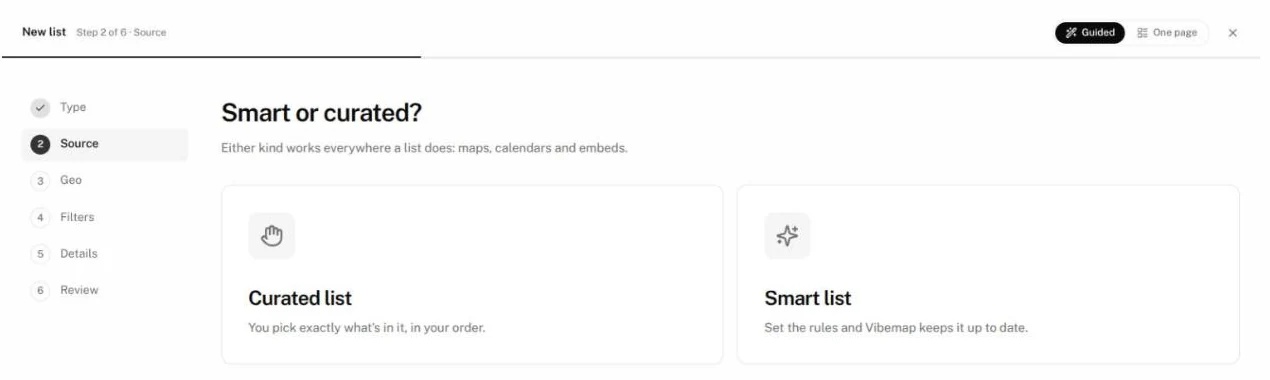
- A Smart list follows rules you set, such as an area and a set of categories. Vibemap keeps it up to date as places and events change.
- A Curated list holds exactly what you pick, in your order.
Each type has one default list: the one the Places and Events pages open on. Editing a list updates every map, calendar and embed that uses it.
In the sidebar, click Lists.
Find a list
- Type in Search lists.
- Show All, Places or Events lists.
- Sort by Name or by size (Most places & events). Where your lists carry update dates, Recently updated appears too.
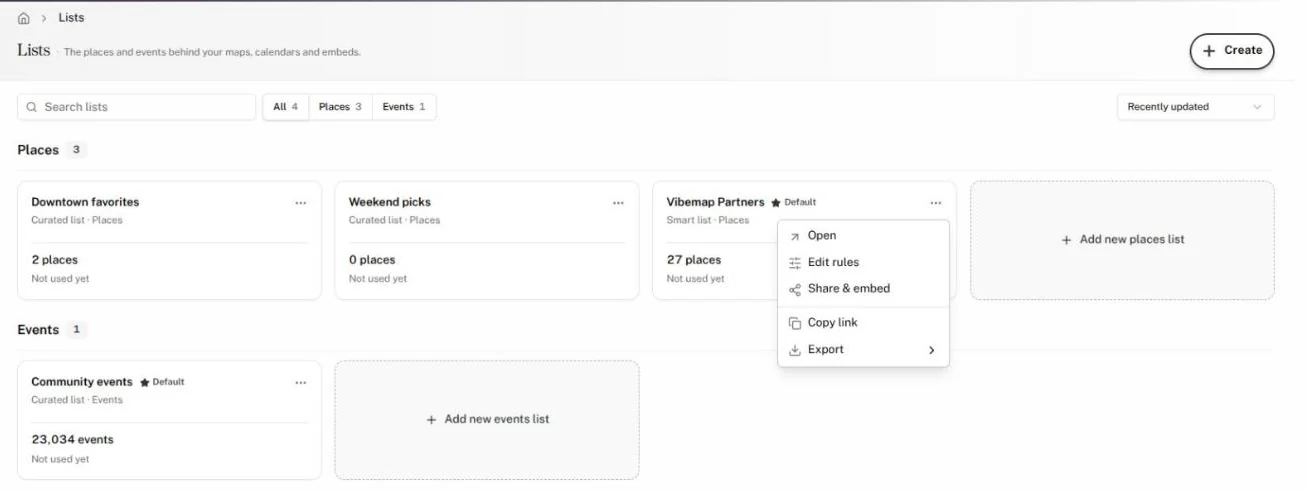
Each card shows the list's name, a Default badge if it is one, its kind and type, its size, and where it's used ("Used in 2 maps · 1 calendar", or "Not used yet").
The card's menu offers Open, Edit rules, Share & embed, Copy link and Export, and can make the list your default.
Create a list
- Click Add new places list or Add new events list at the end of a section. From the Places or Events page, the list menu's New places list or New events list does the same. So does Create, then List.
- Type: if the wizard asks, click Places or Events. The wizard moves on by itself.
- Source: click Smart list or Curated list. The wizard moves on.
- For a Smart list:
- Geo: under Anchor, choose Boundary to use your organization's area, or Radius to set a distance in miles.
- Filters: click a filter under Add a filter, such as Categories, Tags or Vibes, and choose what to include or leave out. For places, you can also exclude specific places and set Minimum tier, Minimum completeness and Hide places without photos. The count at the top shows how many items match.
- For a Curated list, Members: add items one of four ways:
- Import places from a spreadsheet or Google Sheet (places only)
- Recent imports, to reuse a past import (places only)
- Paste names, which Vibemap matches to what it already has
- Find in your directory, to search and pick items one by one
- Details: give the list a Name (required). Optionally add a subtitle and description, make it your default, allow public submissions, pick a theme, and add a call-to-action button.
- Review: check the summary and click Create list.
Click Continue to move on and Back to return. Guided walks you step by step; One page shows every step at once.
The Hub creates the list and opens it. A Your list is ready window offers Create a map and Edit list, plus Create a calendar for an events list.
To start a Curated list from places or events you've already found, select them on the Places or Events page. In the bar that appears, click More, then Create new list.
Change a list
Open the list. Its tabs are Overview, Places (or Events), Rules, Share and Settings.
Edit its rules
- Open Rules.
- Change what you need: the name, subtitle and description, the default setting, the area and filters (Smart list), the members (Curated list), submissions, theme or call to action.
- Click Save changes, or Discard to drop your edits.
Add or remove members
- Open Places (or Events).
- To add places, click Add places at the top, search, and add them.
- To drop an item, use its row action: Remove from list on a Curated list, or Exclude from list on a Smart places list. A Smart events list can't drop single events; change its rules instead.
Make it your default
Open the More list actions menu (the three dots) and make the list your default, or turn on the default switch on the Settings tab. Each type keeps one default, so the star moves to this list.
Switch kinds
In More list actions or on the Settings tab, click Make it a Smart list or Convert to a Curated list.
Use, share or export a list
- Use in… offers Create a map, Create a calendar (events lists) and Share or embed.
- The Share tab gives you a Hosted link, with a copy button and Open, and counts its Link opens. Under Embed on your site, choose Script (recommended: it resizes to fit) or Iframe, then click Copy code. For an events list, first pick Full Calendar, Featured Carousel or Add Event Form.
- More list actions offers Copy link, View live and Export. Export downloads the list's places or events; for events, you can also get past ones.