Manage Categories & Filters
Control which categories, vibes and tags visitors see on your maps and grids, what they're called, and how they're grouped in the filter bar.
Places and Events keep separate settings. Your changes apply to your organization's theme, so every map and grid on that theme picks them up.
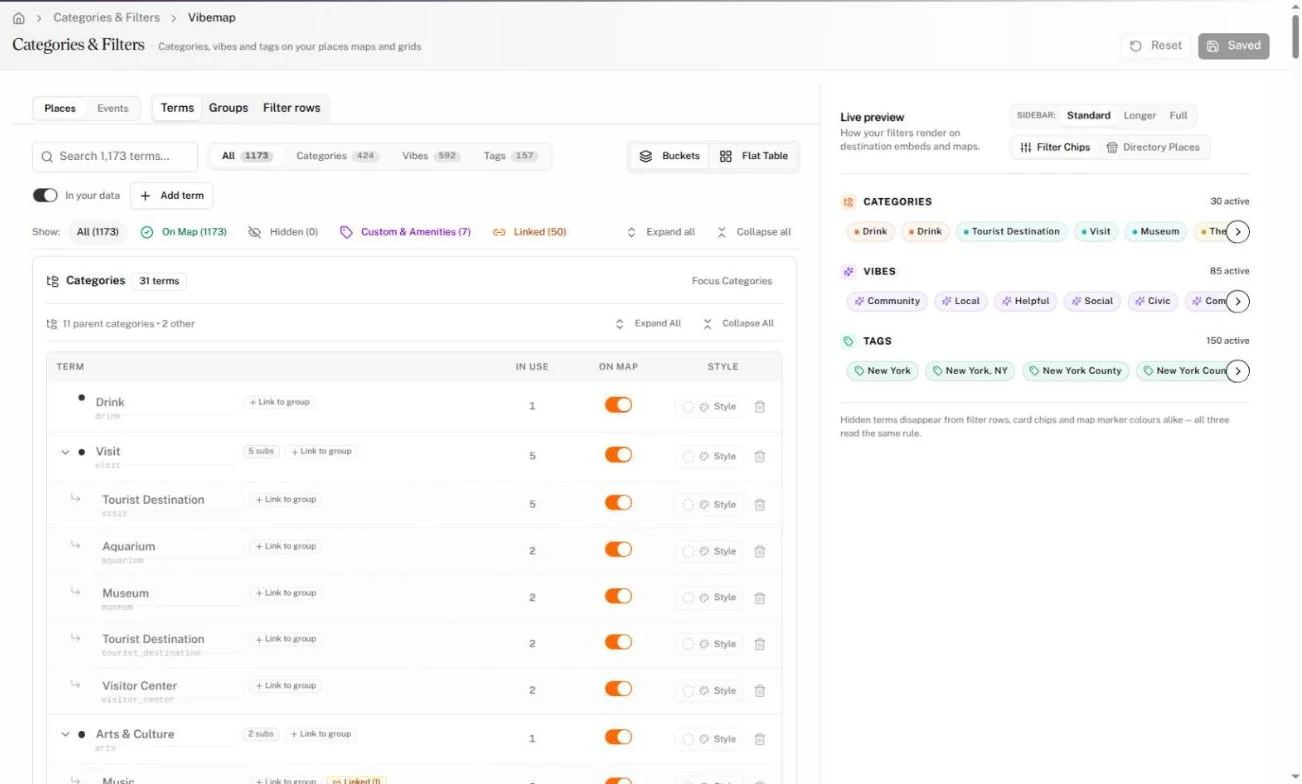
In the sidebar, under My Directory, click Categories & Filters. The page opens on your organization's theme. If your organization has no theme, the page says "No theme for this organization"; ask your Vibemap contact to set one up. Old links to the Hub's /categories page open this page too.
Pick what to edit
- Above the tabs, click Places or Events. A number beside each shows how many changes it holds.
- On the Terms tab, narrow the list:
- Search with "Search … terms…".
- Show All, Categories, Vibes or Tags.
- Next to Show:, pick All, On Map or Hidden. Buttons such as Edited appear once they have something to show.
- Switch In your data on to show only the terms your places or events use.
- View them in Buckets (grouped by type) or as a Flat Table.
A vibe or tag marked On records comes from your own places or events rather than Vibemap's standard set. Hide or rename it like any other term.
The Live preview at the right shows your filter bar and listings as visitors will see them.
Hide, rename or restyle a term
- Click a term. Its settings replace the preview at the right, with a count of the places or events that use it.
- Change what you need:
- Switch Show on Map & Filters off to hide the term. Hiding a category also hides its subcategories.
- Type a new Display Name. Leave it blank to keep the standard name.
- Pick a Color and an Icon for its map markers and badges.
- Set a Custom Sort Order. Lower numbers appear first.
- Under Custom Filter Groups, add the term to a group.
- Click Back to preview when you're done.
Group terms into filter rows
A group adds its own row to the filter bar, mixing terms from categories, vibes and tags.
- Open the Groups tab.
- Type a name, such as "Food & Drink", and click Add group.
- In the group, use its add button to pick the terms it holds. Add subgroup nests a set of terms inside it.
- Move groups up or down to set their order in the filter bar.
Show or hide whole filter rows
- Open the Filter rows tab.
- For Categories, Vibes and Tags, choose Not set, Show or Hide. Not set keeps whatever your theme already does.
Save your changes
The Hub saves your changes about a second after you stop editing. The bar at the bottom reads "Unsaved changes (auto-saving...)", then "All changes saved".
Click Save now in that bar, or Save changes at the top, to save at once. Both places also offer a button that drops every change since the last save. If a save fails, a red Save failed notice explains why, and your edits stay on screen.