Manage Directory Photos
Find places and events with missing or duplicate photos, and fix them in one place.
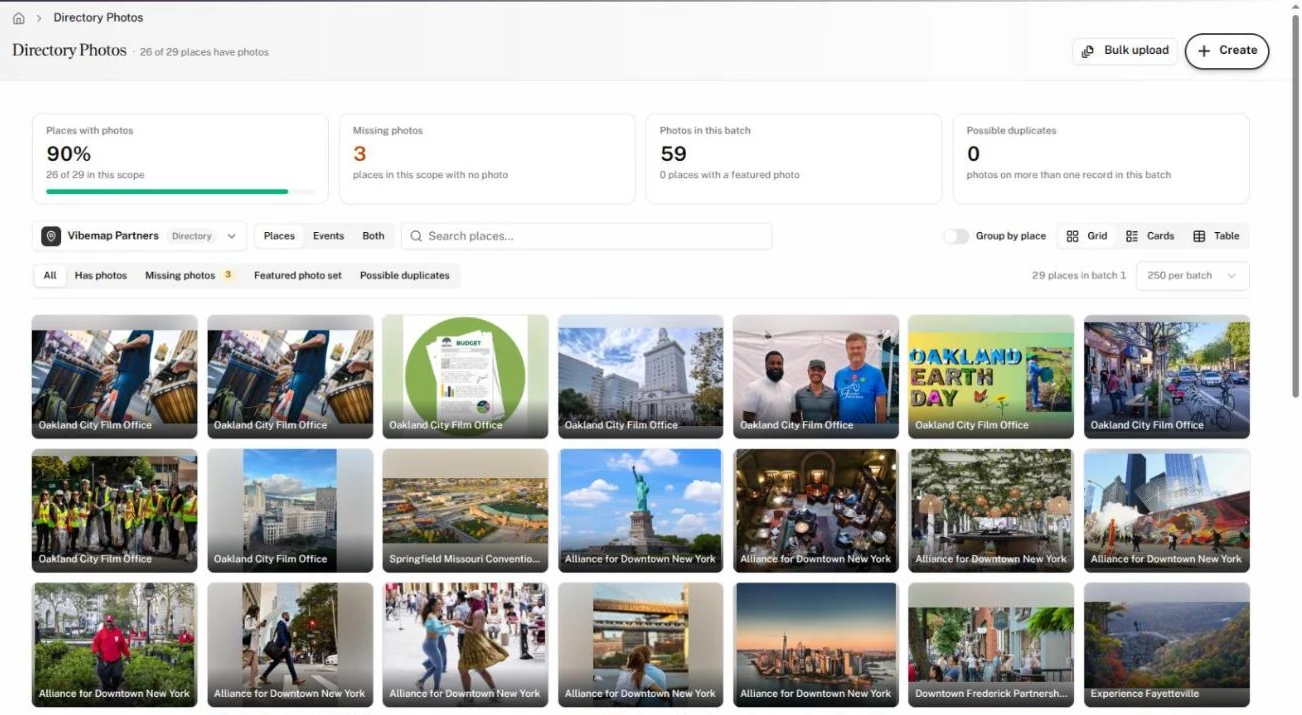
Directory Photos shows every photo across your places and events, with tools to add, feature, remove and de-duplicate them. Its subtitle counts your coverage: "820 of 1,040 places have photos".
Read the coverage
- In the sidebar, under My Directory, click Directory Photos.
- Read the four cards at the top:
- Places with photos: the share of places in your scope with at least one photo.
- Missing photos: how many places in your scope have none. Click the card to list them.
- Photos in this batch: every photo loaded, and how many records have a featured photo.
- Possible duplicates: photos that appear on more than one record in the batch. Click the card to review them.
The first two cards count your whole scope. The page loads records in batches, and the last two count only the batch on screen. Choose 100 per batch up to 1,000 per batch at the right, and use Previous batch and Next batch at the bottom to page through.
Find the records that need work
- Choose the scope with the list picker at the top left: one of your lists, or your whole area.
- Pick Places, Events or Both, and search by name.
- Click a tab: All, Has photos, Missing photos, Featured photo set or Possible duplicates.
- Choose a view:
- Grid shows every photo as a tile with its quality score. Turn on Group by place to group the tiles under each place.
- Cards shows each record with its photos and buttons to add more.
- Table shows one row per record: Photos, Name, Type, Count, Featured photo and Flags.
The page remembers your record type, view and grouping in this browser.
Add photos
To fill the places that have none:
- Click the Missing photos tab. It lists each place with a drop zone.
- Drag photos onto a place, or click its drop zone to choose files. You can also paste an image link into the place's URL box.
A place leaves the list once its photos save.
To add to any record:
- In Cards view, click Add photos to choose files from your computer, or Add by URL to paste an image link and click Add.
- Or click All photos (or a record's name) to open its panel. There, click Add photos or Add by URL, or drop image files anywhere in the panel.
A record holds up to 20 photos. Its first photo becomes its featured photo. The Hub confirms "Added 2 photos" and offers Undo.
Feature or remove a photo
- Hover a photo tile. Click the star (Set as featured) to make it the record's main photo, or the trash can (Remove photo) to delete it.
- Or click the photo to open it full size, then click Set as featured or Remove.
Each change offers Undo for a few seconds.
The full-size viewer shows the photo's size, a Low resolution warning for photos under 600 pixels wide, and its quality score with a label: High quality, Good, Fair or Low quality. The score rises with resolution, a featured flag and alt text. Use the arrow keys to move between photos and Z to switch between Actual size and Fit to screen.
Remove a duplicate photo
A photo used on more than one record carries a red On N records badge.
- Click the Possible duplicates tab.
- Click the photo on the record that should keep it.
- Click Keep on this record only.
The photo stays on that record and leaves every other record in the batch. The Hub confirms "Removed the copy from 2 other records".
Event photos
An event with no photos of its own shows its venue's photos on the public site. Its card reads "No photos of its own; the public site shows its venue's.", and the table's Flags column reads Shows venue photos. Add photos to the event to override them.